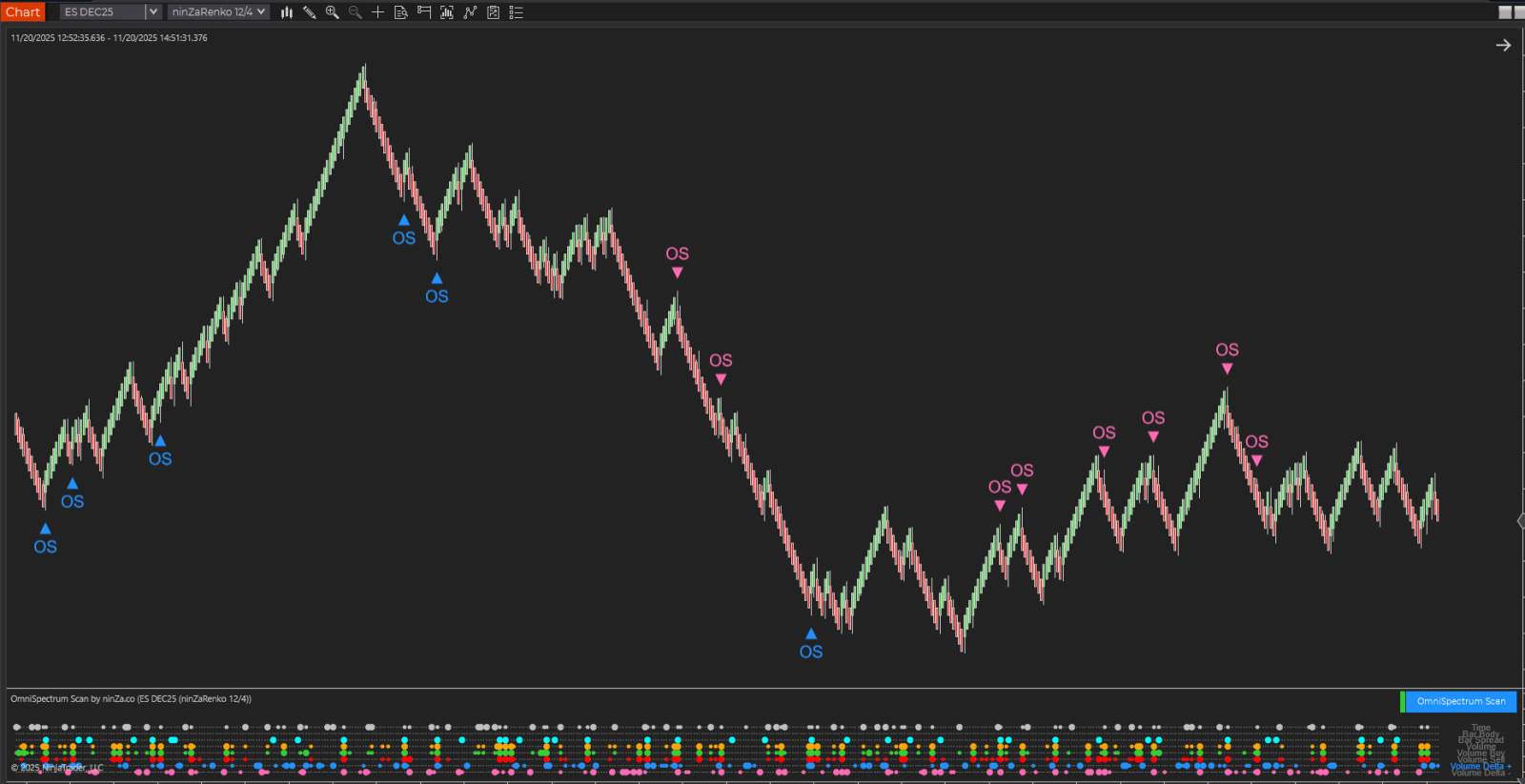
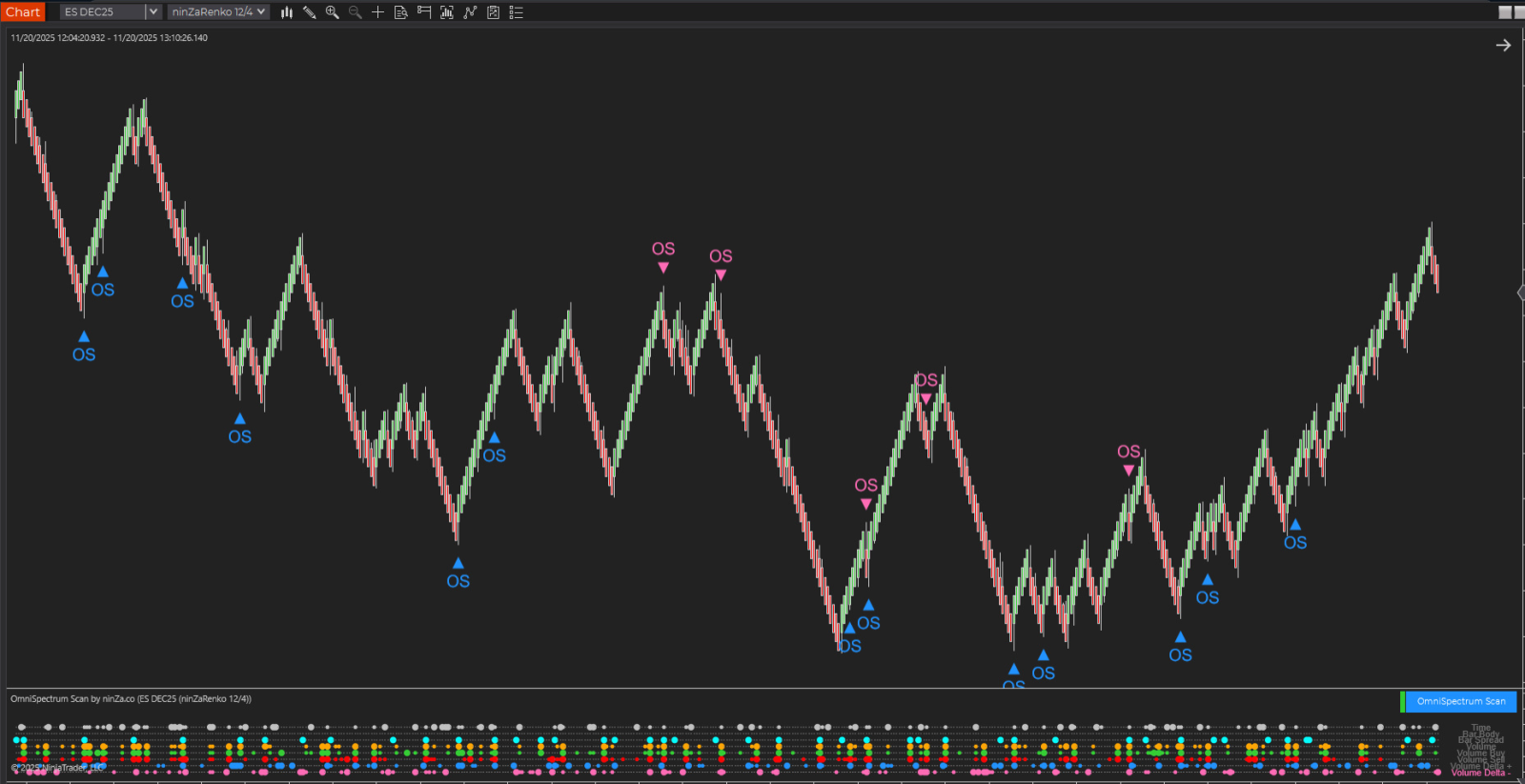
How we use OmniSpectrum Scan to confirm Breakouts in real trading
In this post, we’d love to walk you through a few breakout examples and show how OmniSpectrum Scan (OS) helped us confirm each breakout with clear, consistent signals.
These examples come straight from real trading moments, so you can easily see how OS fits into our process.
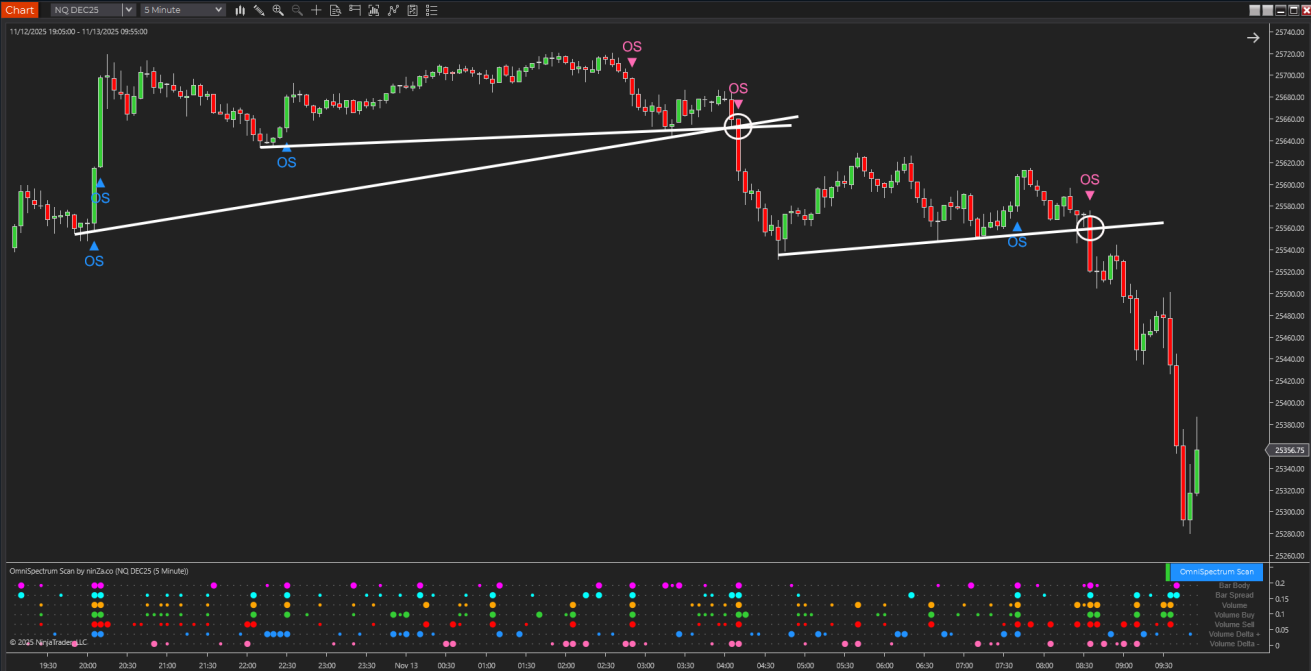
1. OmniSpectrum Scan helps confirm downward trendline breakouts
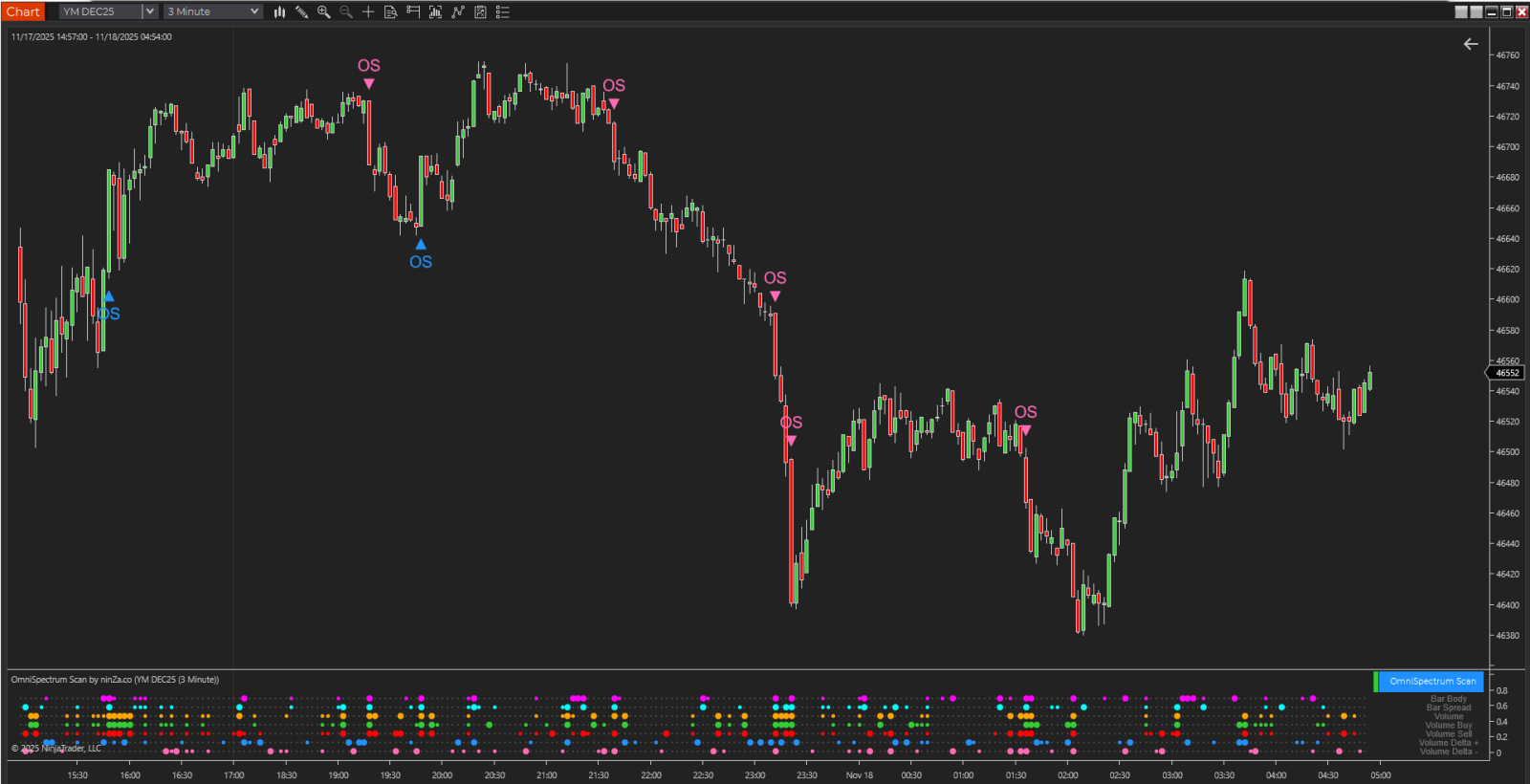
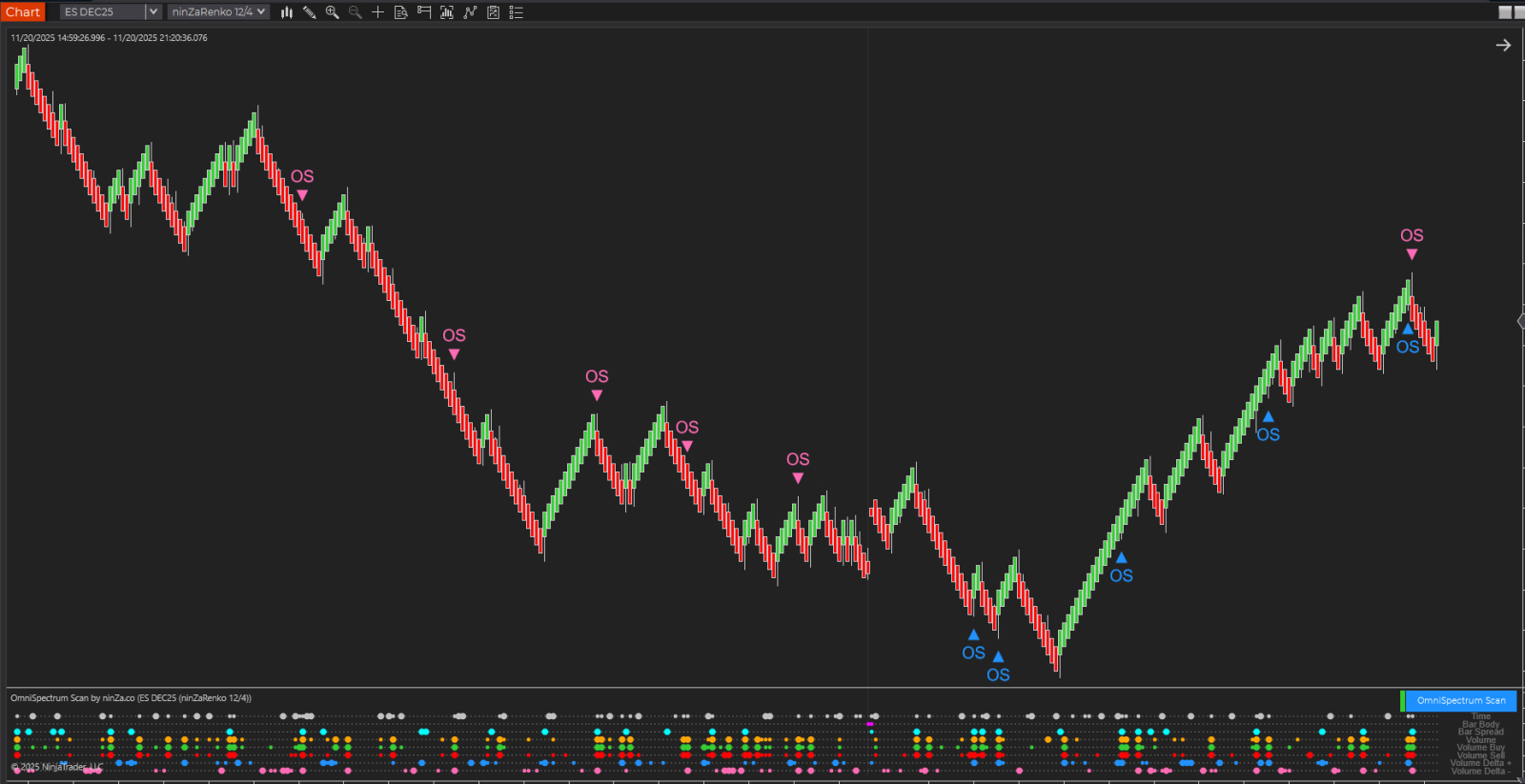
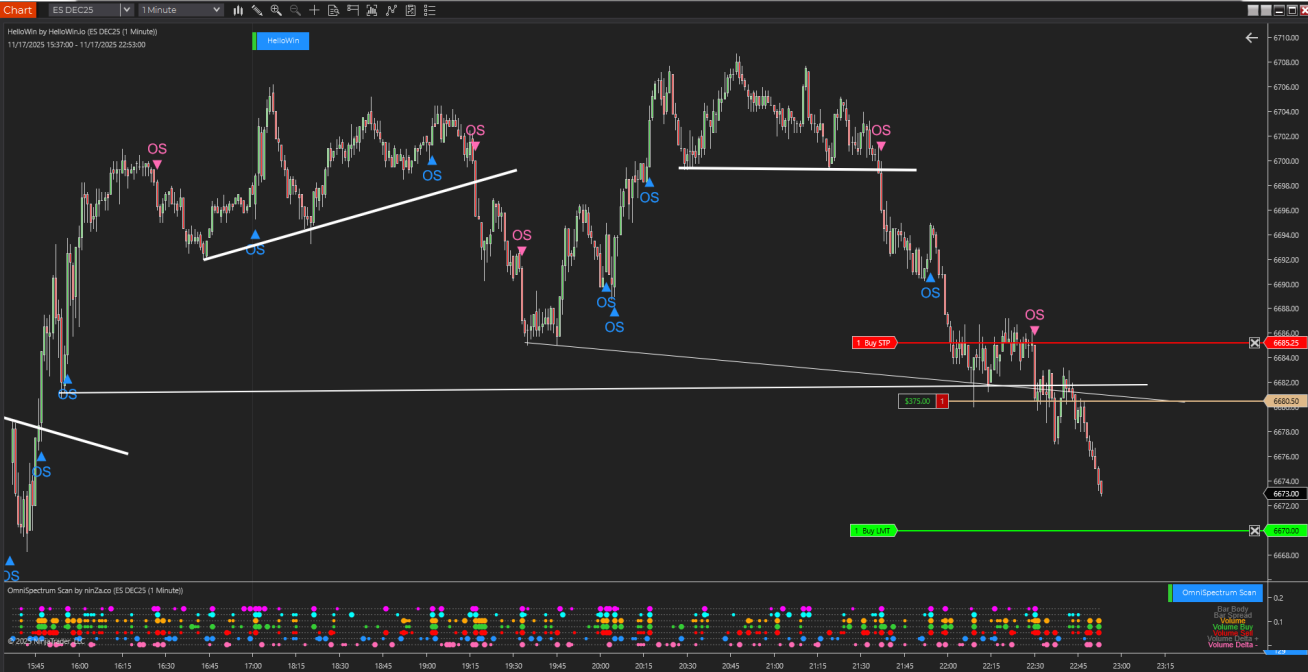
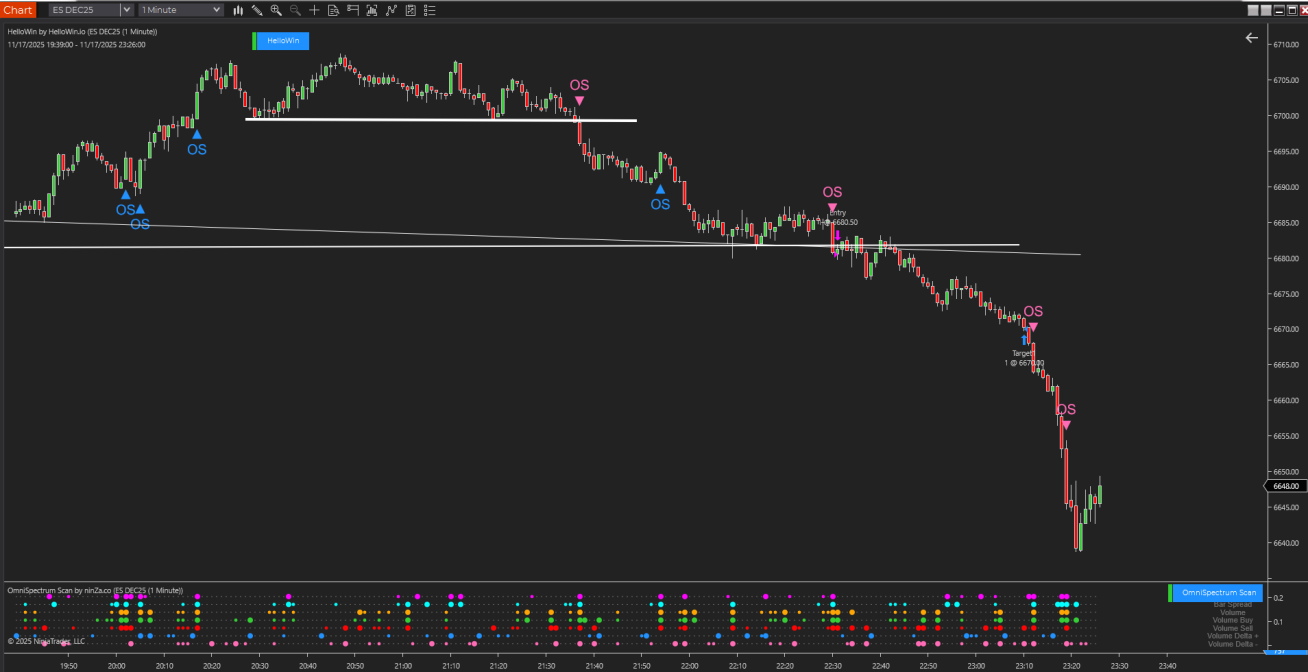
In the first example, we’re looking at 2 downward trendline breakout points.
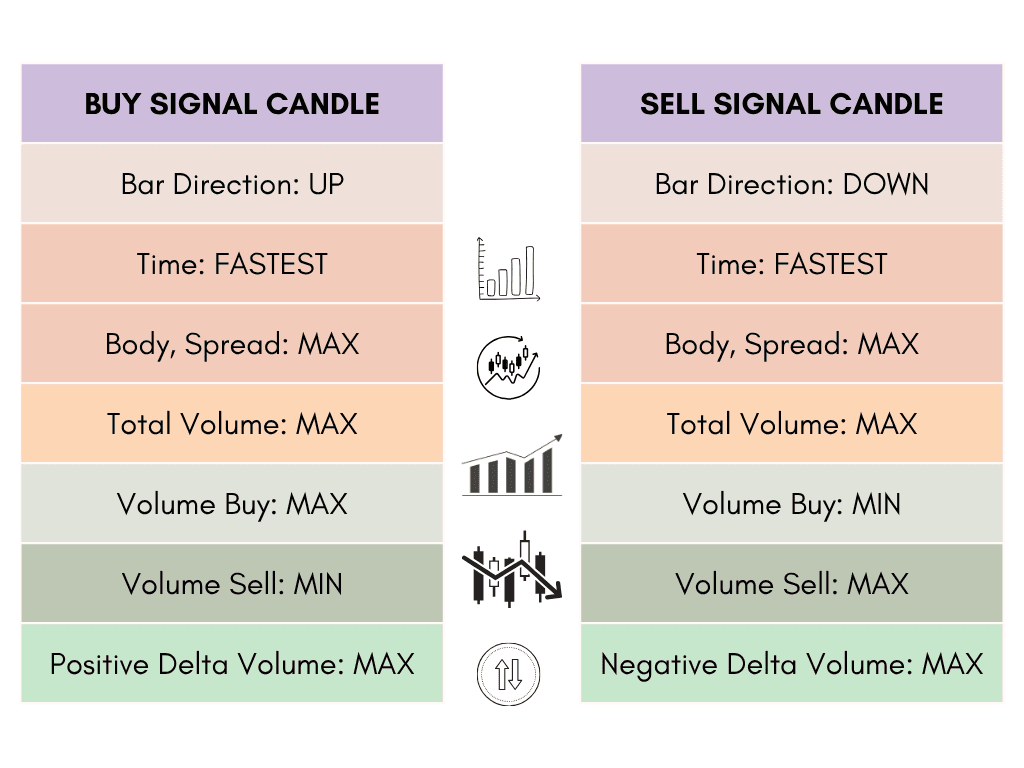
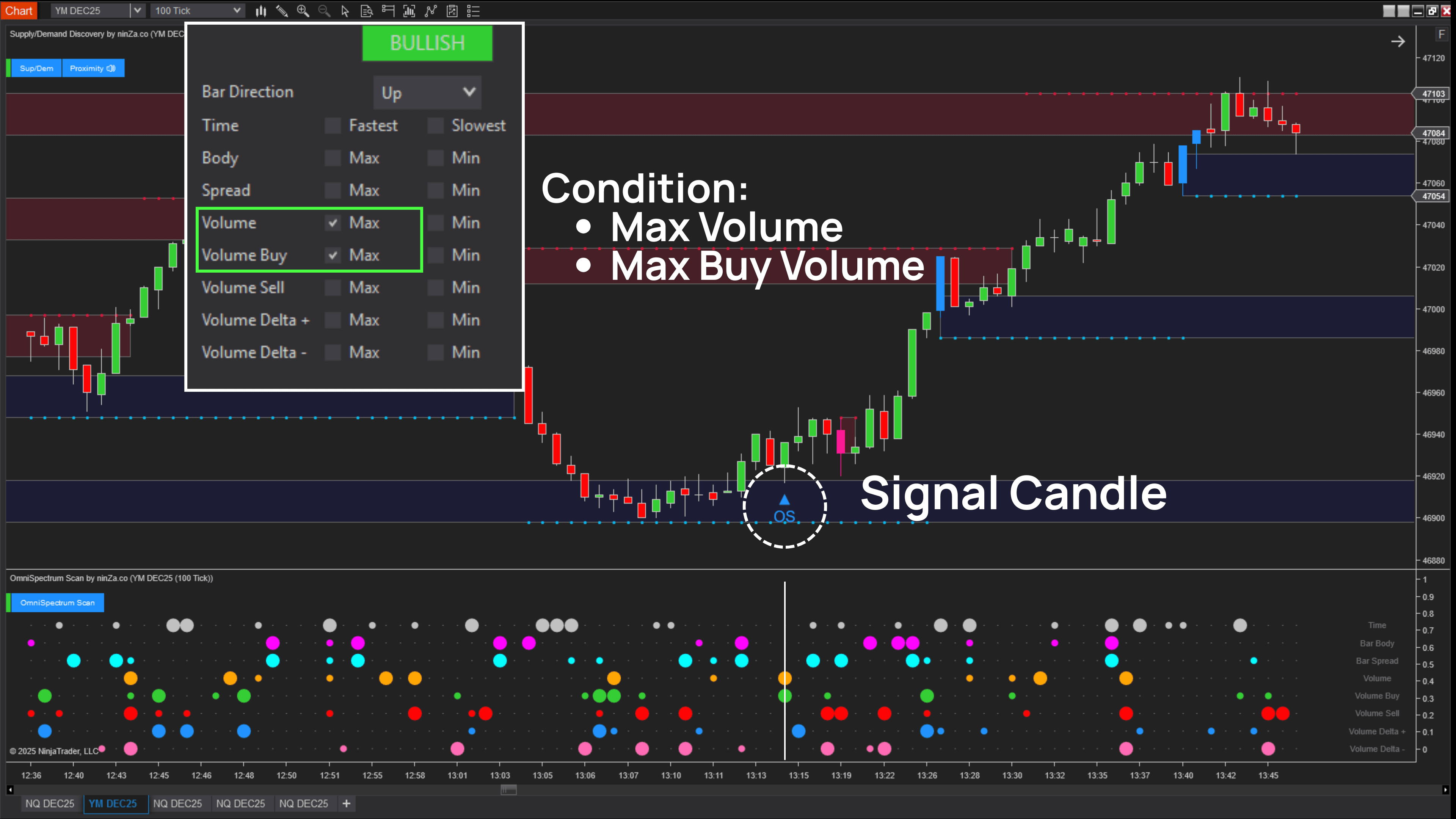
At the bearish breakout candle, OS gave us a clear confirmation that the sell side was fully in control, which helped us trust that the breakouts were genuine and not just quick fake moves.
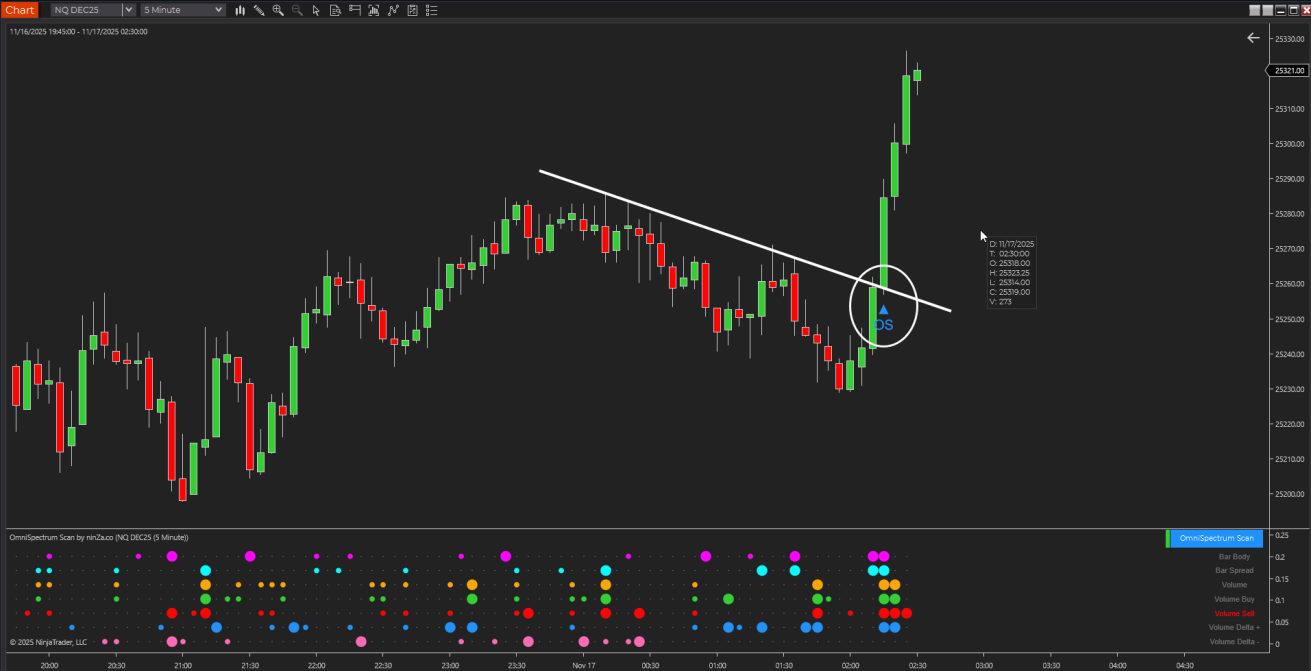
2. Breakout on the NQ – 5 minute chart
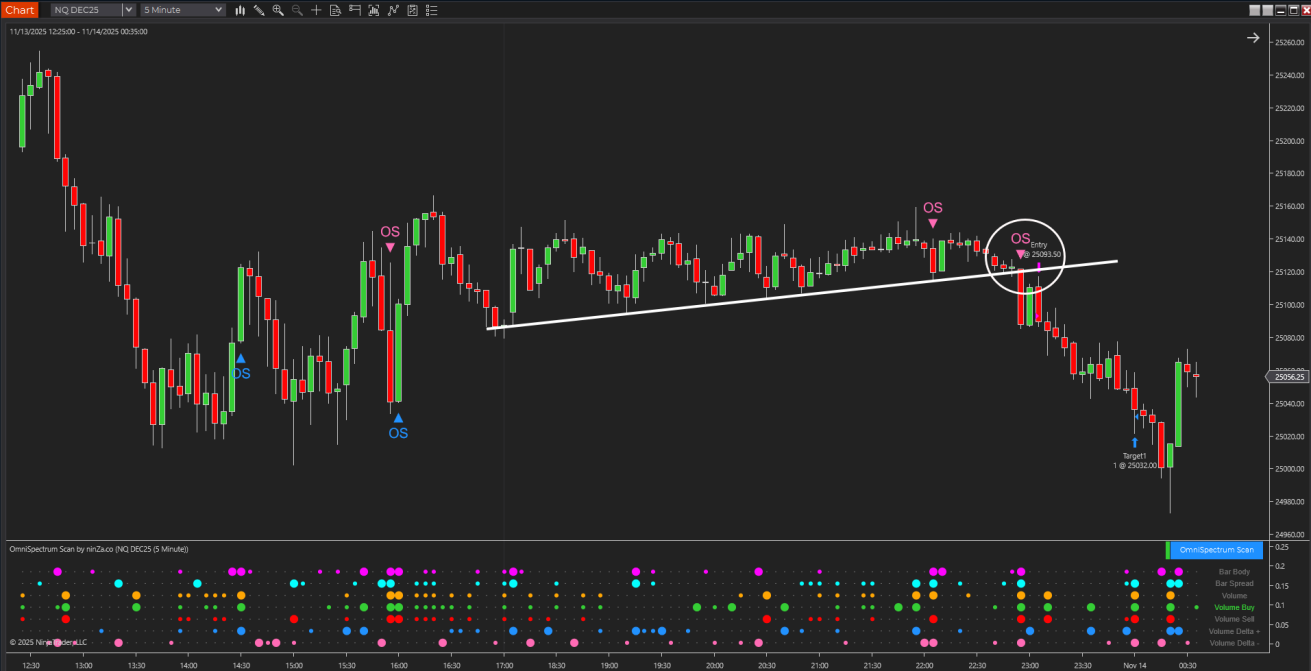
In this example, a breakout occurred on the NQ 5-minute chart, and the OS marker showed up exactly at the point of the break. It’s simple, but very helpful to see this kind of timing.
3. A live sell trade – Our reasoning
For this sell setup, we entered the trade based on two straightforward reasons:
4. Managing the trade – Moving stop to entry
As the trade moved in our favor, we shifted the stop to the entry point to lock in a safer position.
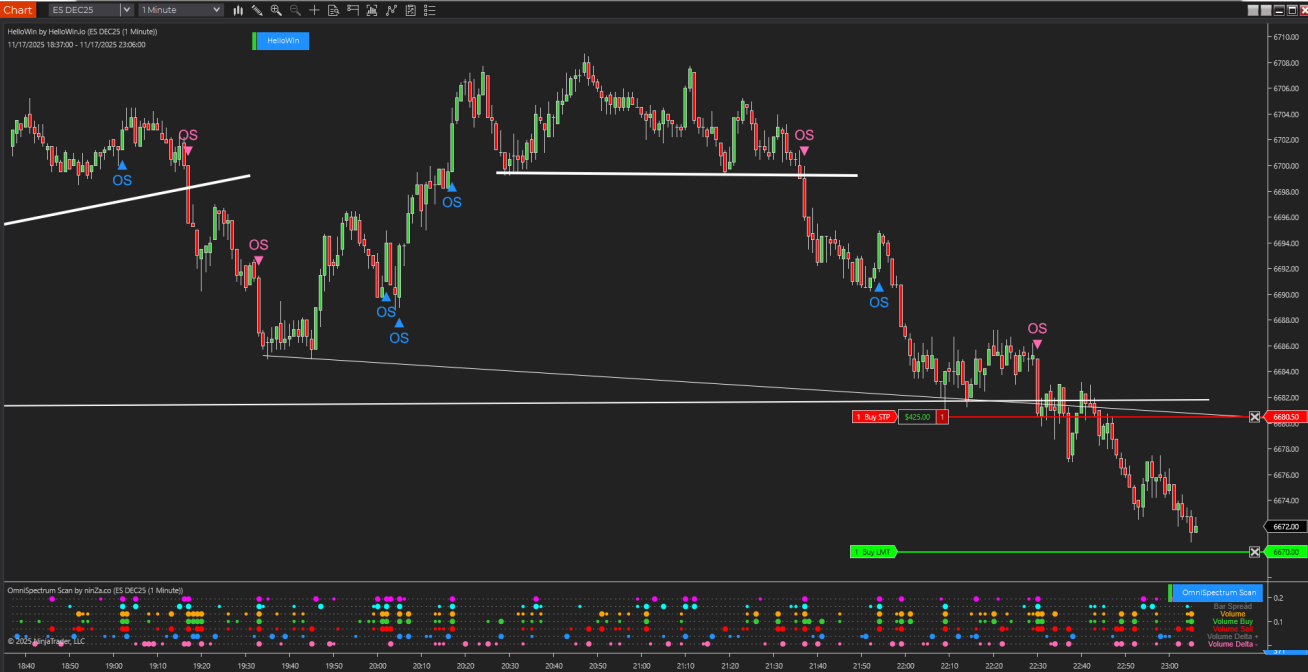
Not long after, the market pushed strongly in the breakout direction, continuing the move we anticipated.
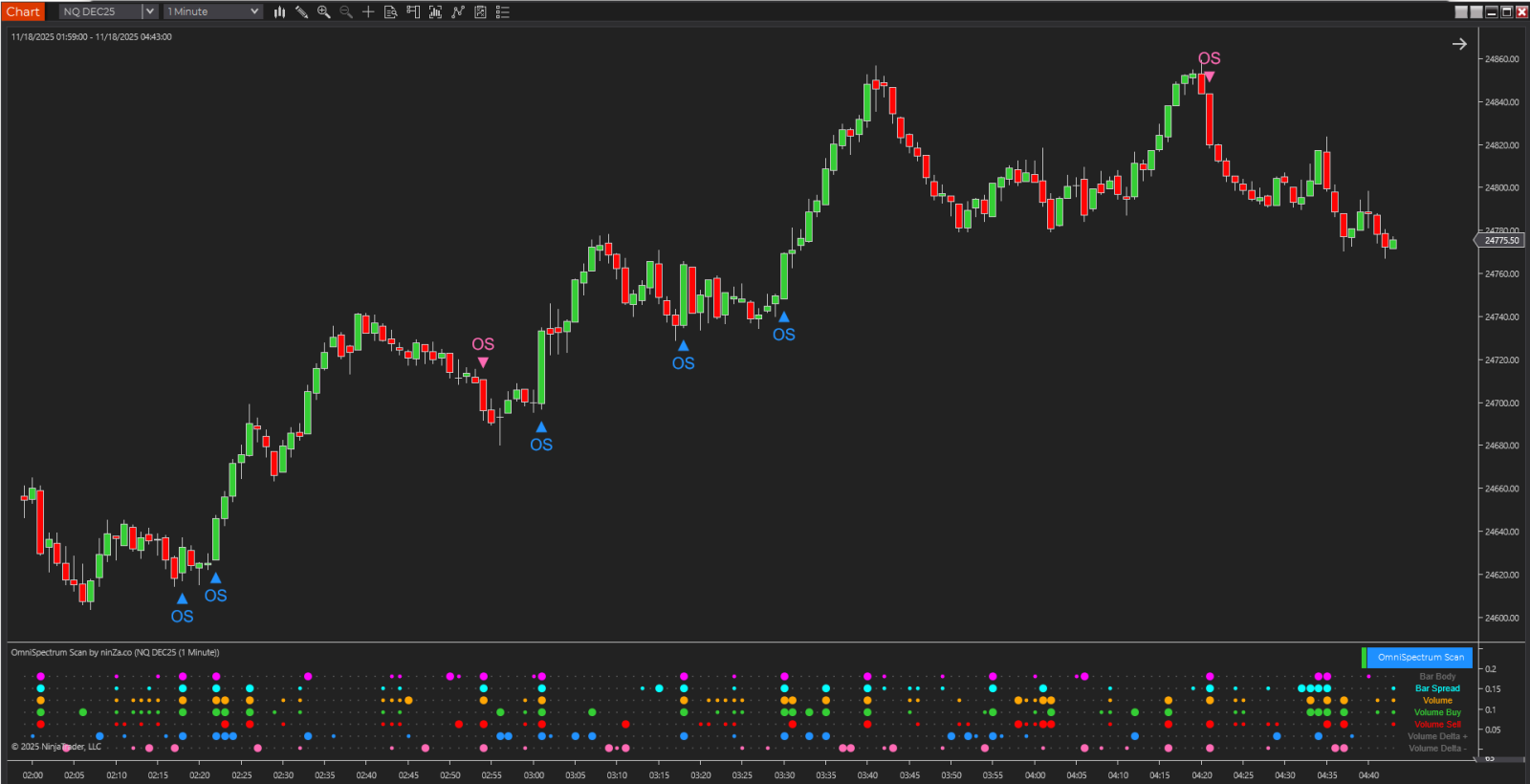
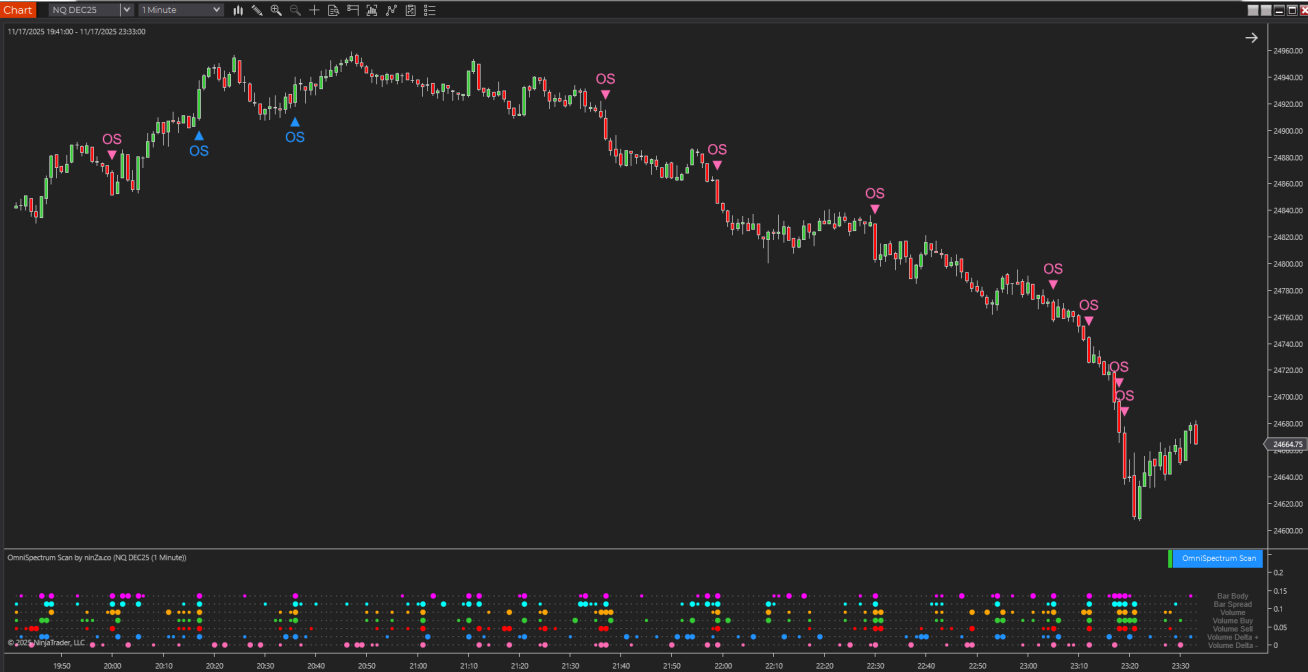
5. NQ 1-minute – Signals wrapped up for the day
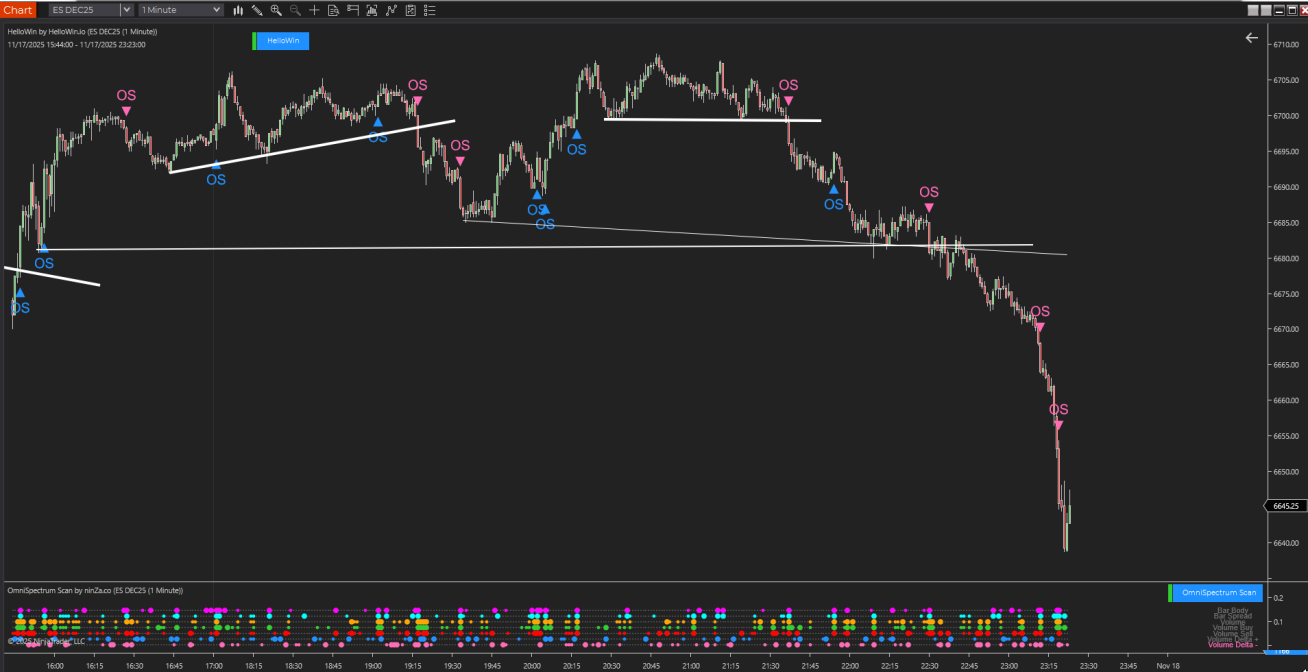
Here’s a quick overview of the NQ 1-minute chart toward the end of the session, showing the day’s final OS signals.
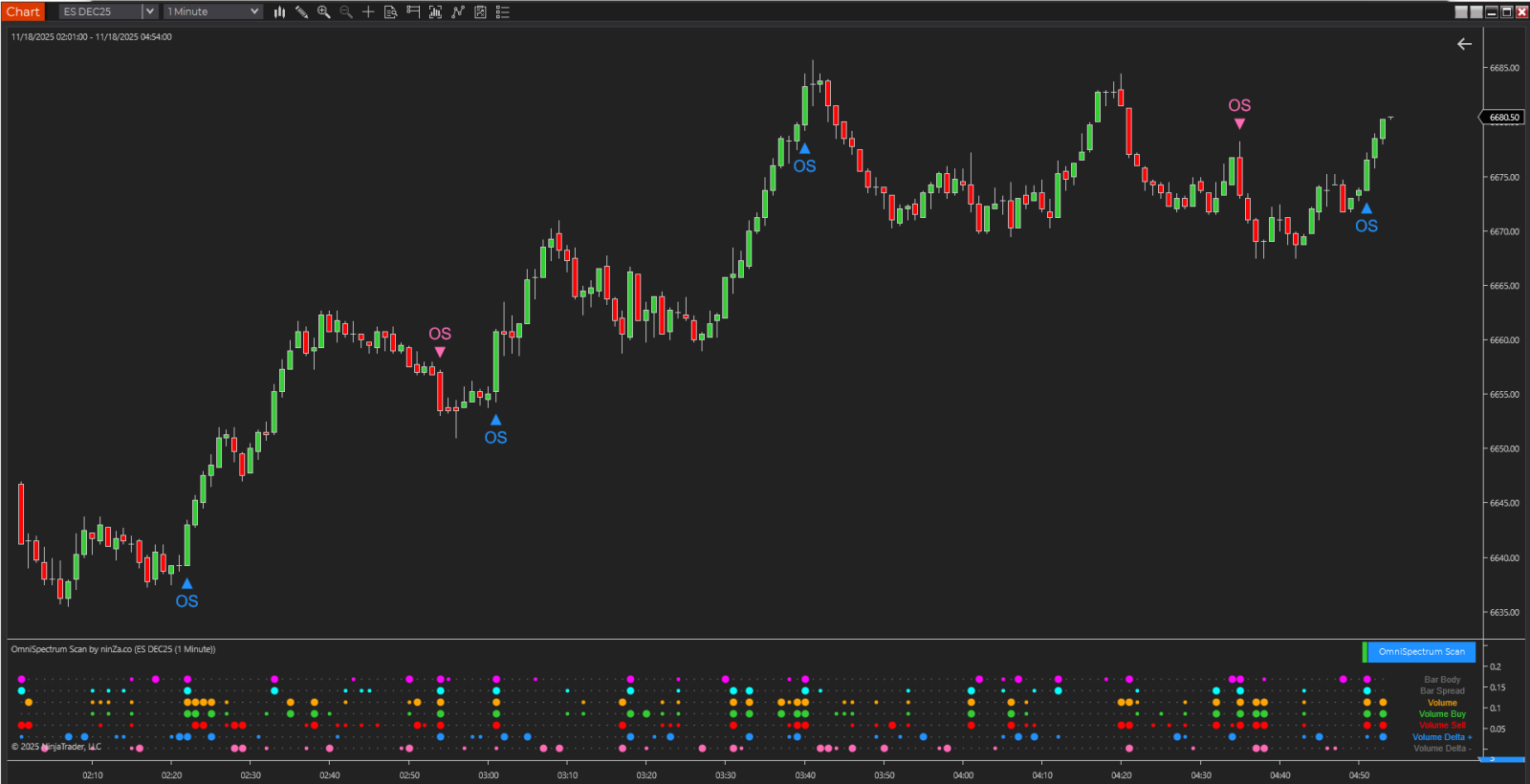
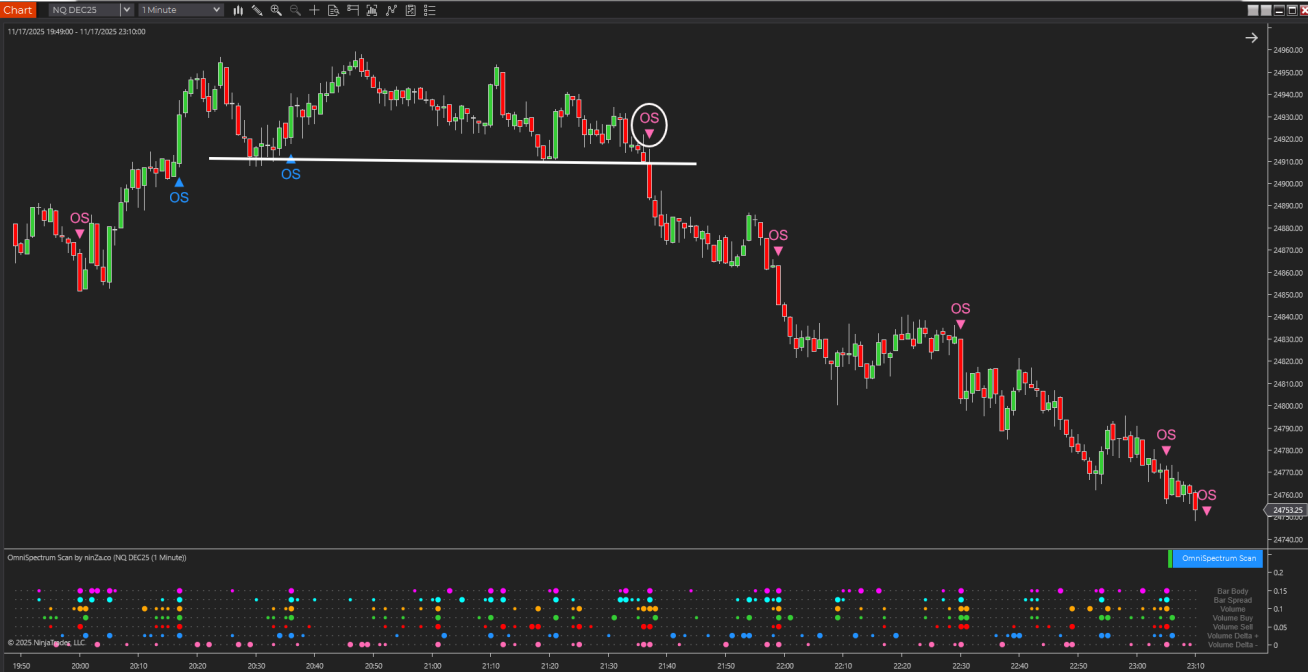
6. Breakout points + OS confirmation candles
And here’s one more reminder of how helpful it is to pay attention to both the breakout points and the OS confirmation candles.
7. A few notes on how we use indicators
Here are some simple thoughts on how we approach trading with these tools:
Indicators are here to support, but experience still leads the way.
It’s important to draw trendlines accurately before looking for OS confirmation.
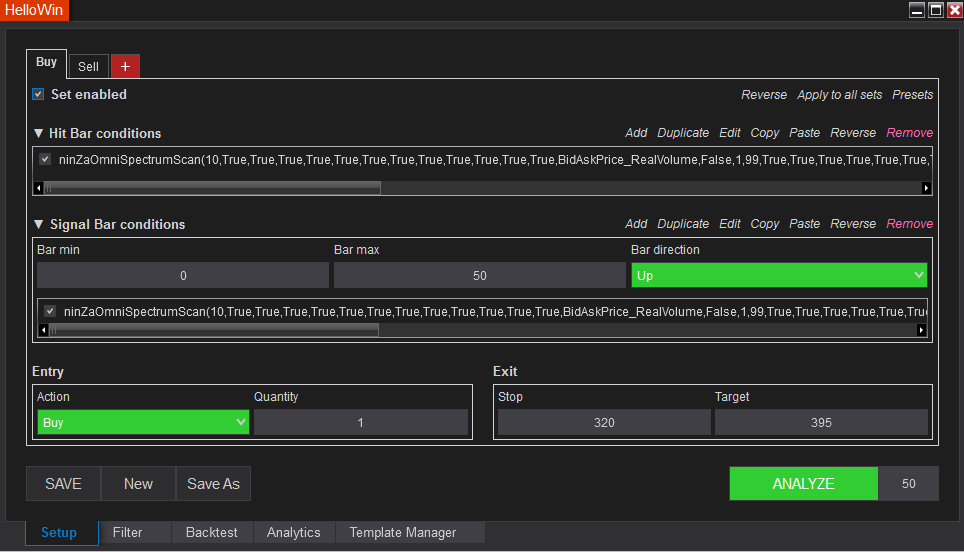
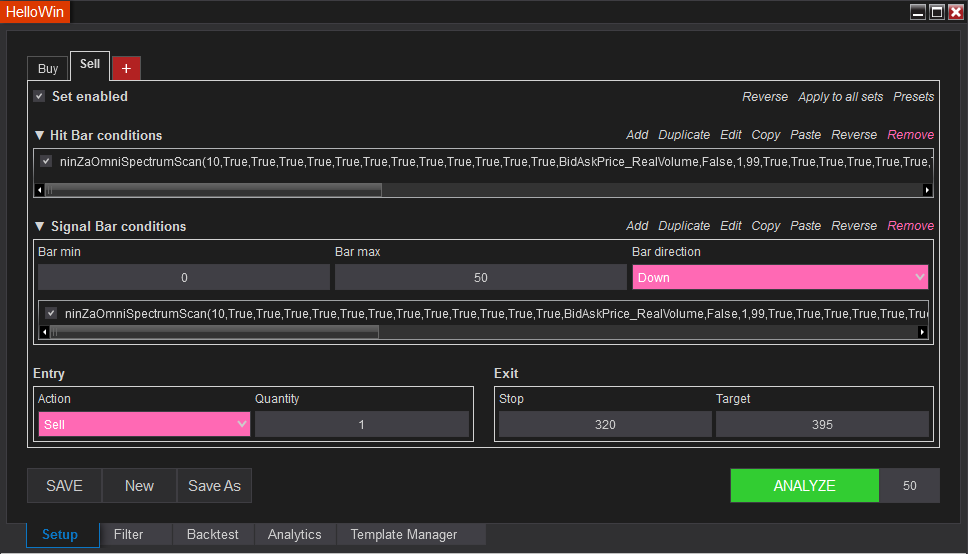
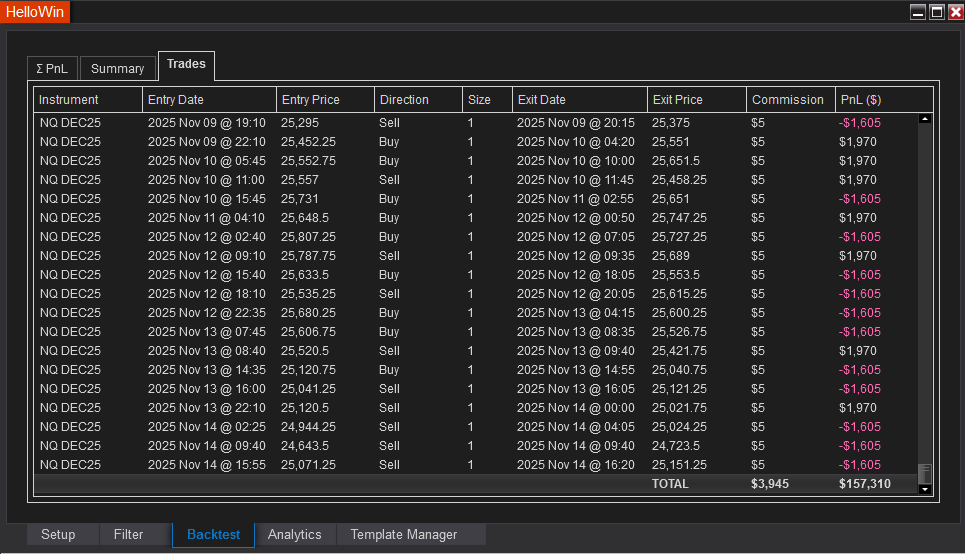
If our first trade of the day works well, we may use automation for the next entries.
If the first trade hits stop, we skip automation.
And the profit from that first trade often acts like a bit of insurance for the rest of the session.
Find out more about OmniSpectrum Scan here: https://scan.nt8.ninza.co/?utm_source=social&utm_medium=hellowin&utm_campaign=scan